Start with Apple's built-in controls.
Open Settings, go to Screen Time, and use App Limits or Downtime for Instagram and other social apps. This is the fastest way to create a basic iPhone boundary.
If you want fewer notifications, combine the limit with a Focus mode that silences Instagram alerts during the hours you want protected.
Make the boundary match the moment.
A vague limit is easy to ignore. Choose the exact window where Instagram usually takes over: the first hour after waking up, the last hour before sleep, deep work, study, meals, or commuting.
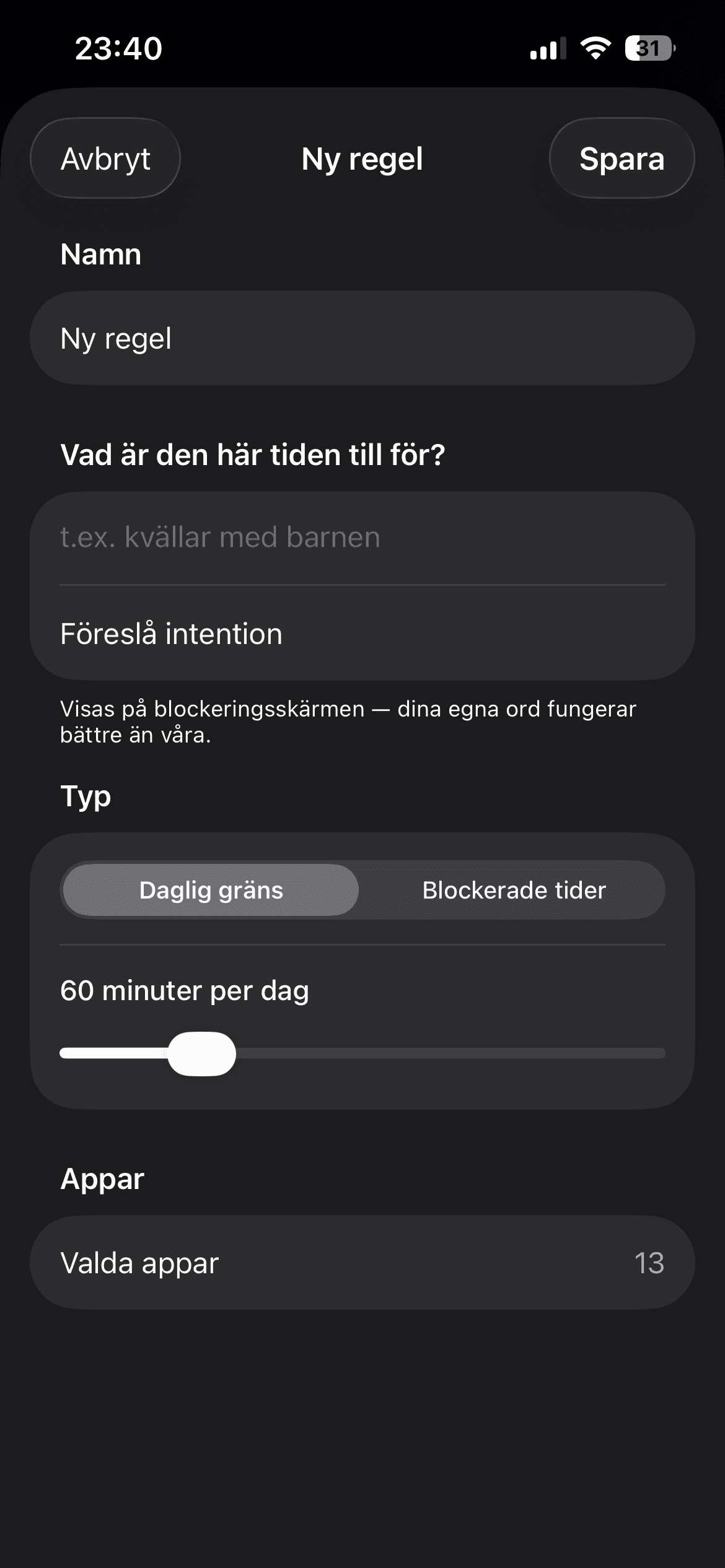
haegr is useful when you want a calmer app blocker flow around that moment. Create a rule, choose the apps that pull you in, and let the block protect the window before you start negotiating with yourself.
Keep a path for intentional use.
Blocking Instagram works best when it is not framed as punishment. Decide when Instagram is allowed, then protect the hours where it usually becomes automatic.
If your goal is to stop doomscrolling rather than quit social media, connect this guide with the stop doomscrolling and social media detox pages so the boundary becomes part of a wider routine.
Can I block Instagram on iPhone without deleting it?
Yes. Screen Time can add limits, Focus can reduce notifications, and haegr can help create app blocking rules for the moments where Instagram usually becomes automatic.
Should I block all social media apps at once?
Start with the one or two apps that cost the most time. A focused rule is easier to keep and easier to improve.
Download haegr on the App Store
Block the moment before the scroll starts.
Download haegr for iPhone and create calmer app rules around Instagram and the apps that pull you away.
Download